Overview

A visual overview of the schedule workspace, including views, filters, quick actions, auto assign, workload, and issues.

Schedule

The schedule is where you build, assign, and publish shifts for your team.
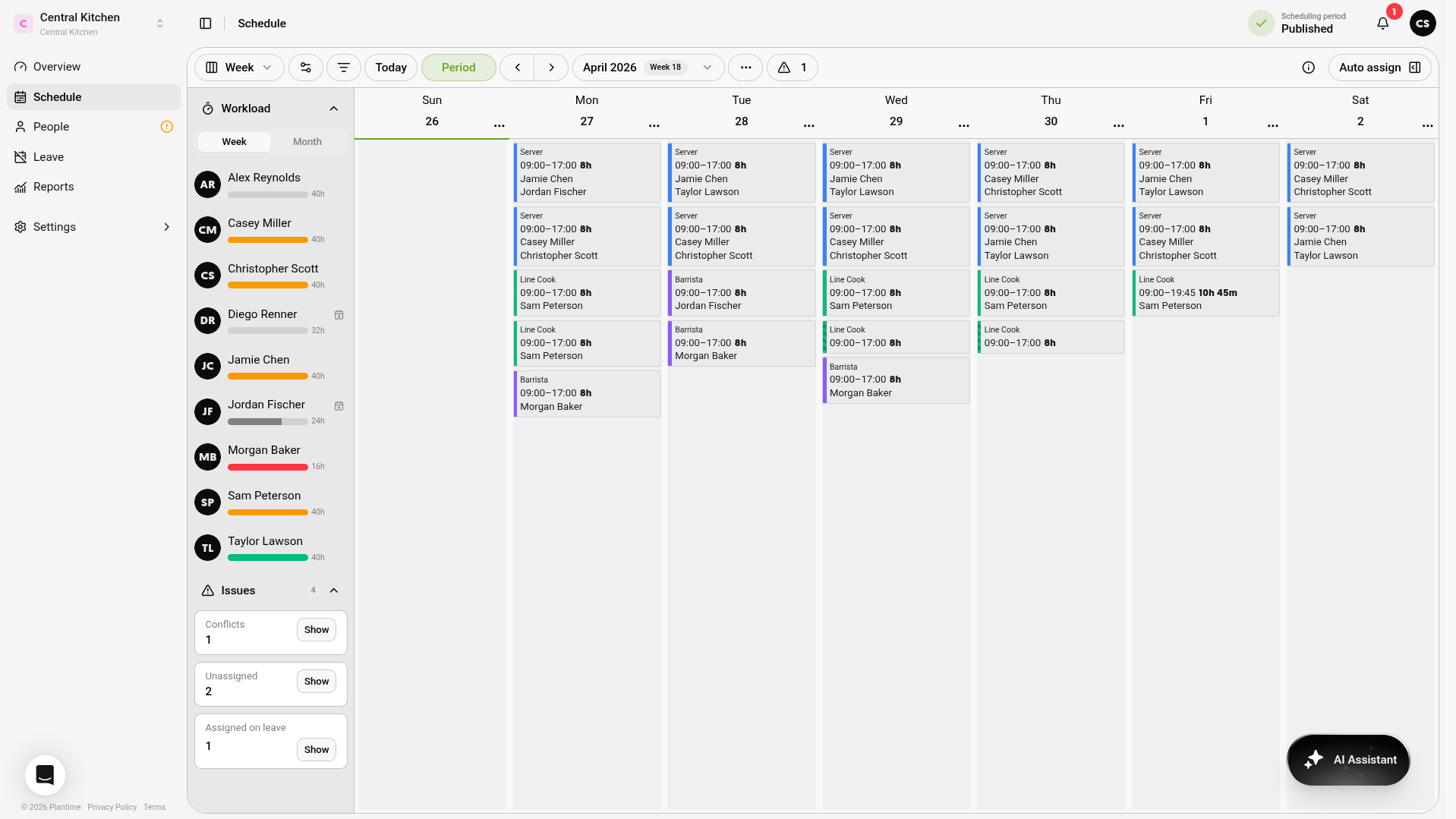
Weekly scheduling view showing shifts across the week with the workload and issues sidebars open
The schedule combines period controls, shift planning, workload tracking, and issue review in one workspace

Period

The period controls define the date range you're planning for and show whether the schedule is still draft, collecting preferences, or published. Use the ‹ Period button in the toolbar to jump to it, or navigate week by week with the arrows. For the step-by-step setup and publishing workflow, see Scheduling periods.
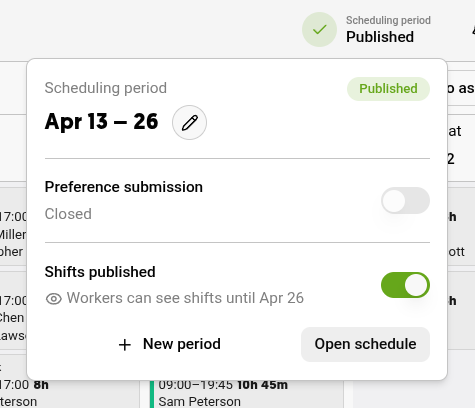
Scheduling period popover showing the selected date range, preference submission status, and publication toggle
Manage the planning window, collect preferences, and publish shifts from the period popover

Views

  • Day — Full detail on a single day.
  • Week — Your main planning view.
  • Month — Spot coverage gaps at a glance.
  • People Overview — Hours and coverage by person across the period.
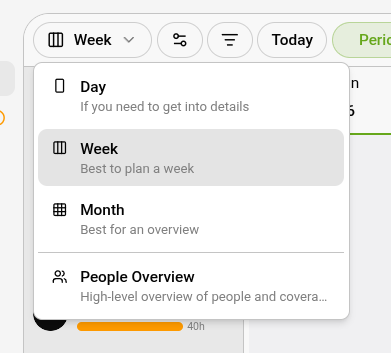
View switcher menu with Day, Week, Month, and People Overview options
Switch between detailed daily planning, weekly scheduling, monthly coverage, and people-level summaries

Layout options

Adjust how the schedule looks. Available options vary by view.
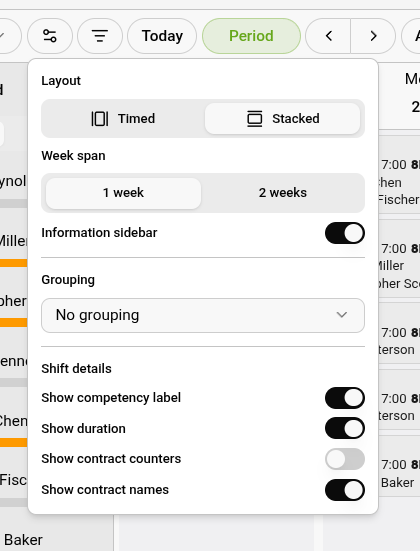
Display settings panel with layout, week span, grouping, and shift detail options
Customize the layout, visible details, grouping, and sidebar behavior for the current schedule view

Filters

Narrow what's visible by competency, person, time, or issues. Filters stack — combine them to find exactly what you need.
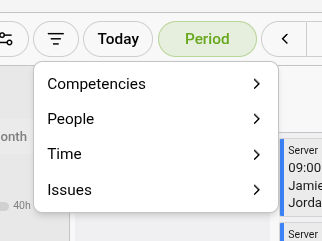
Filter menu with categories for competencies, people, time, and issues
Use filters to focus on the roles, people, times, or problems you need to review

Quick actions (...)

  • On the week header — Copy, paste, apply last week's schedule, or delete all shifts for the week.
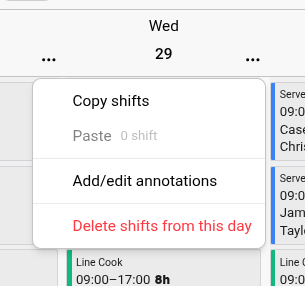
  • On a day column — Copy, delete shifts, or add annotations.
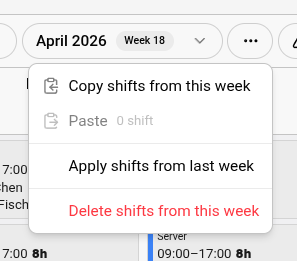
Week actions menu with options to copy shifts, paste shifts, apply the previous week, or delete shifts for the week
Week actions help you reuse patterns or clear an entire week quickly
Day actions menu with options to copy shifts, paste shifts, add annotations, or delete shifts for the day
Day actions let you manage a single day without affecting the rest of the schedule

Auto assign

Auto assign button in the toolbar
Auto assign shifts based on availability, contract hours, and skills

Auto assign fills unassigned shifts across the period using availability, contract hours, competencies, and existing assignments. See Auto-Assign for when to run it and how to review the results.

Workload sidebar
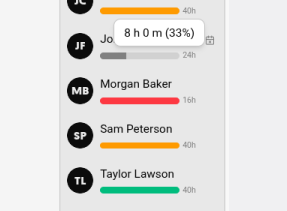
Workload sidebar
See your team's workload

Shows scheduled hours vs. expected contract hours (based on workload percent) per person. Green = on target.

Issues

Unresolved conflicts or contract violations. Resolve before publishing.
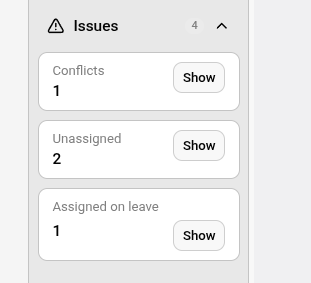
Issues panel listing conflicts, unassigned shifts, and shifts assigned to people on leave
Review conflicts, unassigned shifts, and leave collisions before you publish the schedule